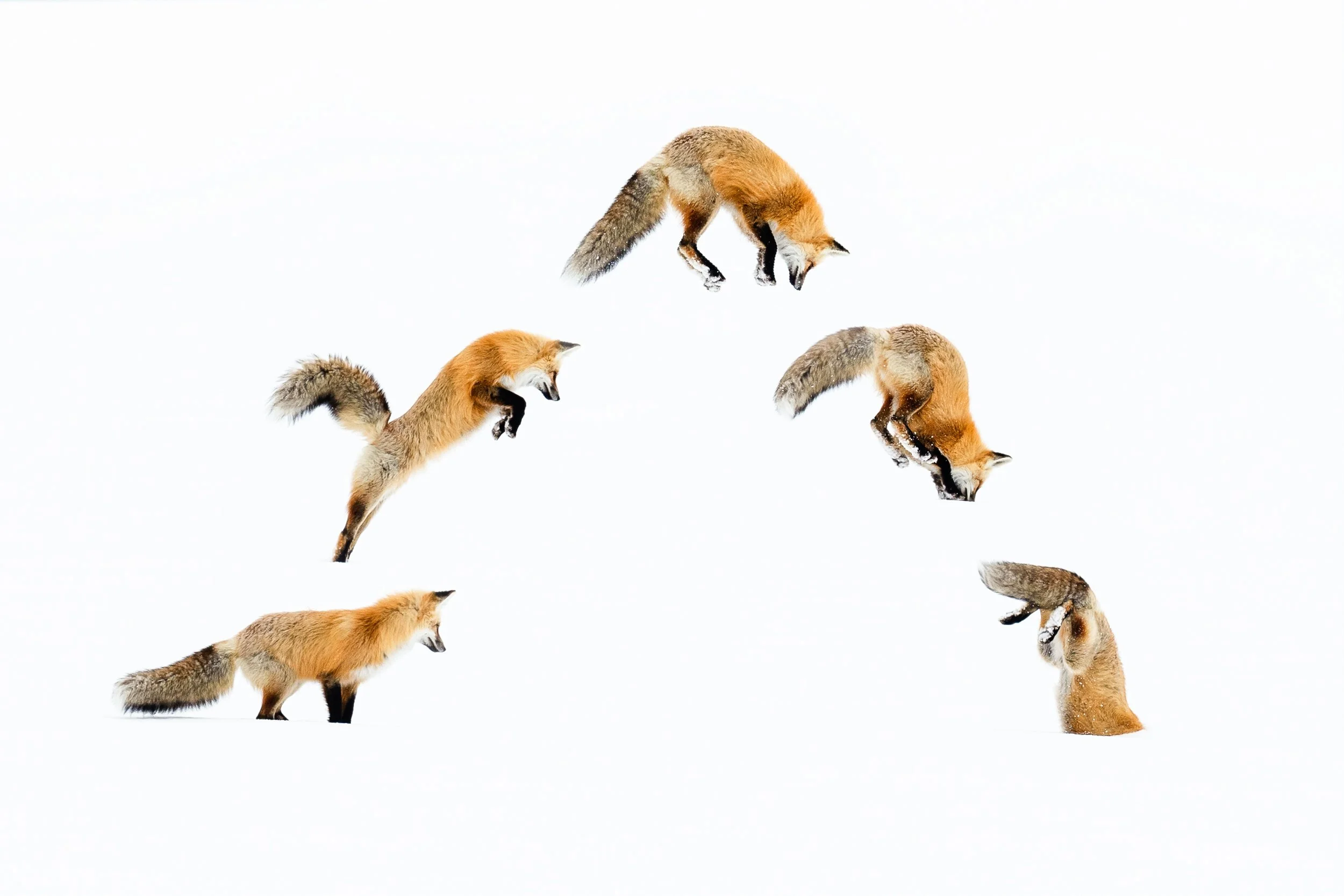
🦊 Creating a Fox Action Series Composite in Photoshop
What You Need
-A series of images shot from the same position (important!)
-Similar exposure & lighting across frames
-Photoshop (any recent version)
- Basic understanding of layers and masks
Tip: High-key snow scenes make composites easier because backgrounds blend beautifully.
Tips for Shooting Fox Sequences in the Field
Keep your feet planted—minimize movement
Shoot vertically or horizontally depending on action
Use high shutter speed (1/2500–1/3200+)
Burst mode: high-speed continuous
Pre-focus when you see the crouch
Keep background clean by choosing your angle
Preparing Your Files
Select the full sequence in Lightroom or your editor.
Apply consistent edits to all images (white balance, exposure, contrast).
Export as high-resolution JPEG or just open from LR into Photoshop.
Consistency is key—your images should look like they belong together before you composite them.
Load Your Images Into Photoshop
Photoshop can load everything into a single layered document for you:
File → Scripts → Load Files into Stack
Click Browse
Select your sequence
Check Attempt to Automatically Align Images (important if you shot handheld)
Click OK
Photoshop will create a single file with each frame on its own layer.
Choose Your Base Layer
Pick the cleanest frame to be your background.
This should be:
The sharpest fox
The most even snow
The frame with the least snow chunks flying through your other fox positions
Drag this layer to the bottom.
Masking the Action into the Scene
For each of the other layers:
Select the layer
Click Add Layer Mask
Press B for Brush
Set brush to:
Soft round
0–20% hardness
Opacity 50–80%
Paint with black on the mask to hide everything except the fox.
Switch between black/white to refine edges.
Position Each Fox
Now arrange them into a sequence:
Move the foxes using V (Move tool)
Space them evenly in an arc or line
Adjust size slightly if needed (but avoid big distortions)
Rotate a tiny bit if it adds flow
Clean Up the Snow
Because winter composites can show repeated snow patterns, clean-up is essential:
Use:
Clone Stamp (S)
Healing Brush (J)
Content-Aware Fill for bigger areas
Remove:
Repetitive snow clumps
Shadows that reveal layer edges
Unnatural overlaps
The goal is to create the illusion that all moments happened in one perfect field of snow.
Saving Your Composite
Save two copies:
PSD file (keeps layers for edits)
JPEG file for sharing/printing